Alpha Intelligence Indicators

How To Find Your TradingView Username

TradingView Desktop App Or Website

⚠️ IMPORTANT: BEFORE YOU BEGIN

Make sure your TradingView username is entered correctly in your Alpha Intelligence Account Dashboard. If your username is not linked, you will not see the indicators in your Invite-only section. If you need help finding your TradingView username, check the tutorial at the bottom of this page.

Your TradingView username is required for us to grant you access to the Alpha Intelligence indicator suite. Here’s how to find it on mobile.

⚠️ Important:
Your username is NOT your display name. It is the text that starts with @ on your profile. Make sure you enter it exactly as shown (case-sensitive).

Open the TradingView app on your computer or browser
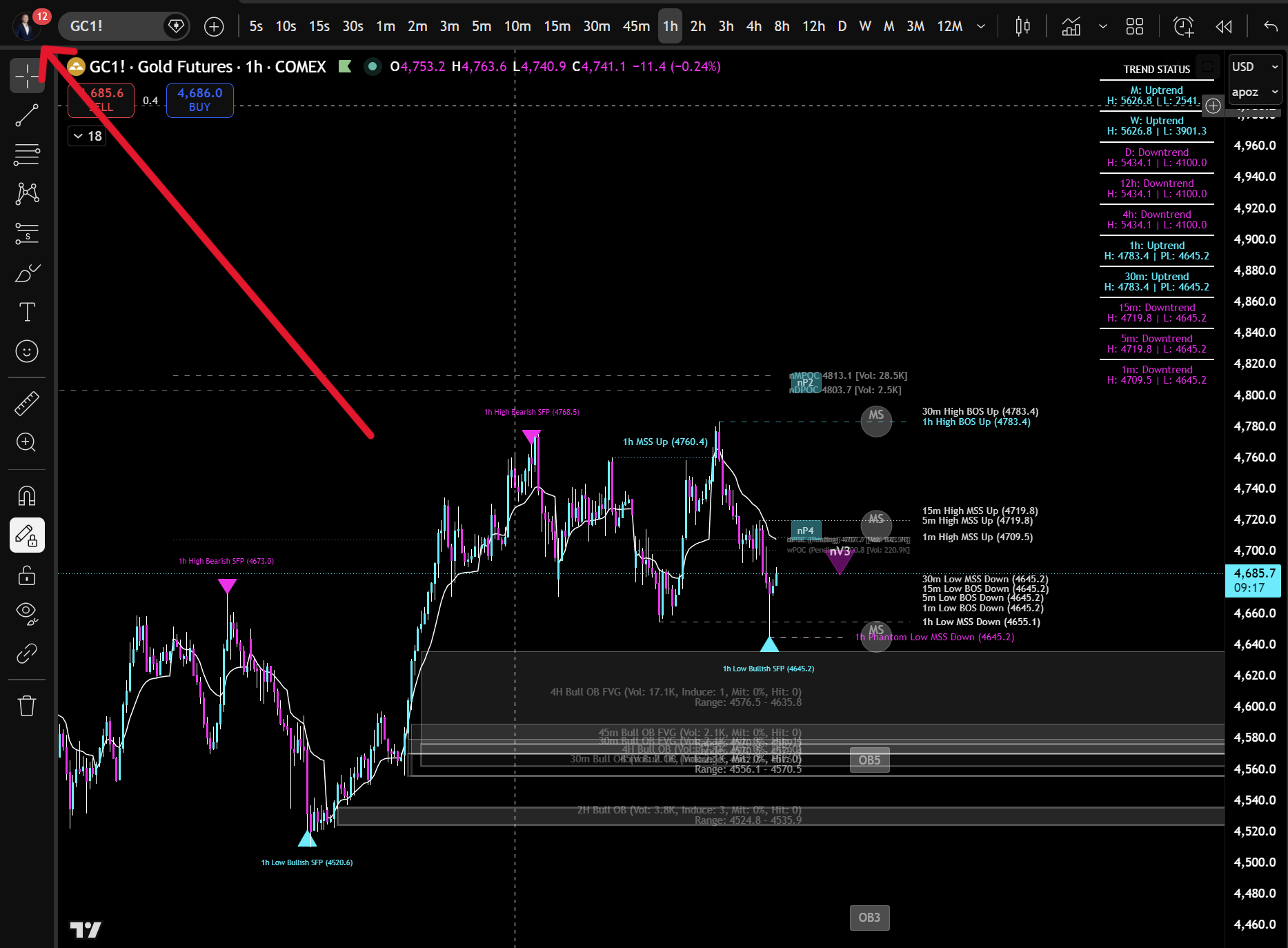
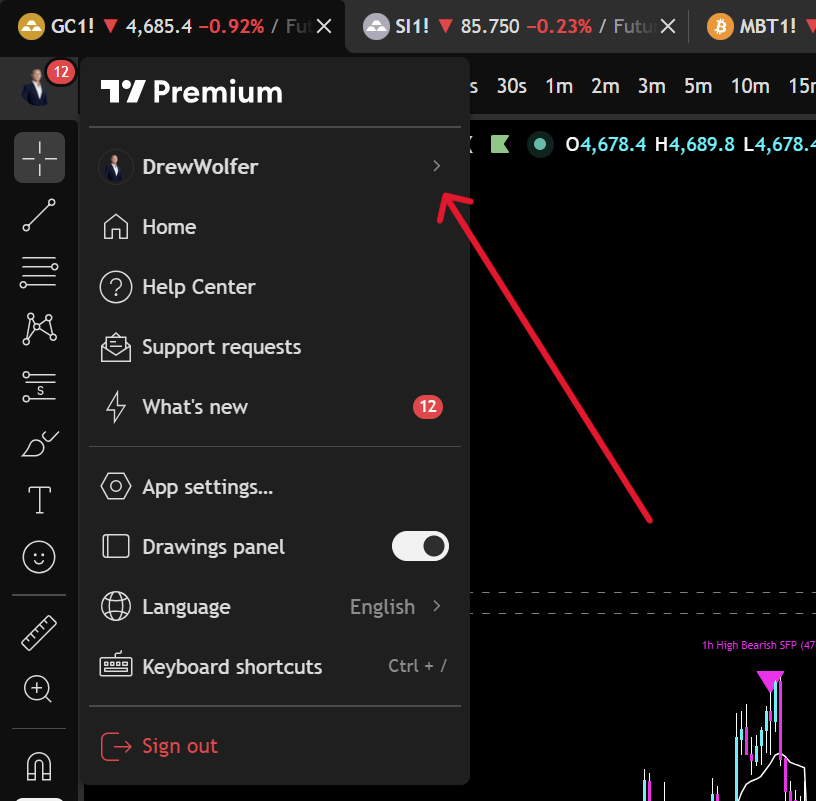
After subscribing to Alpha Intelligence, open any chart in the TradingView app or desktop site and click your profile picture in the upper left hand corner.

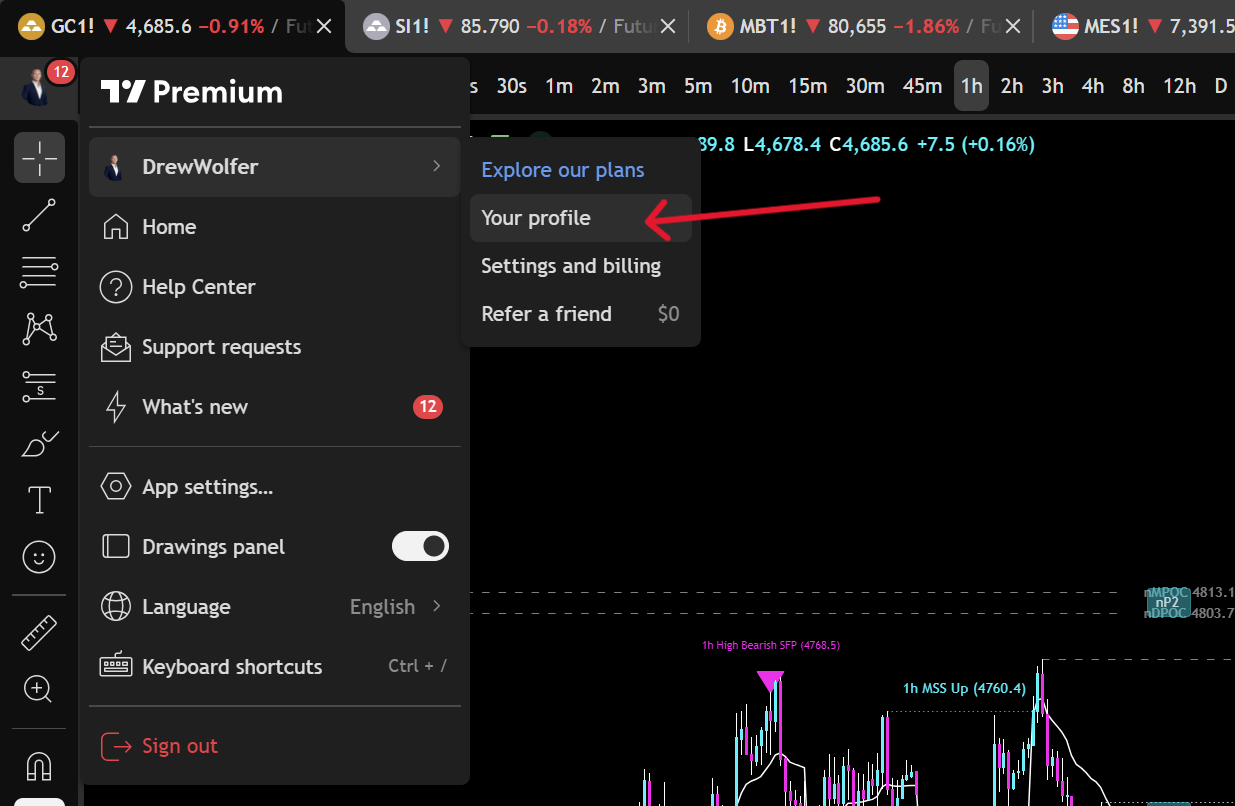
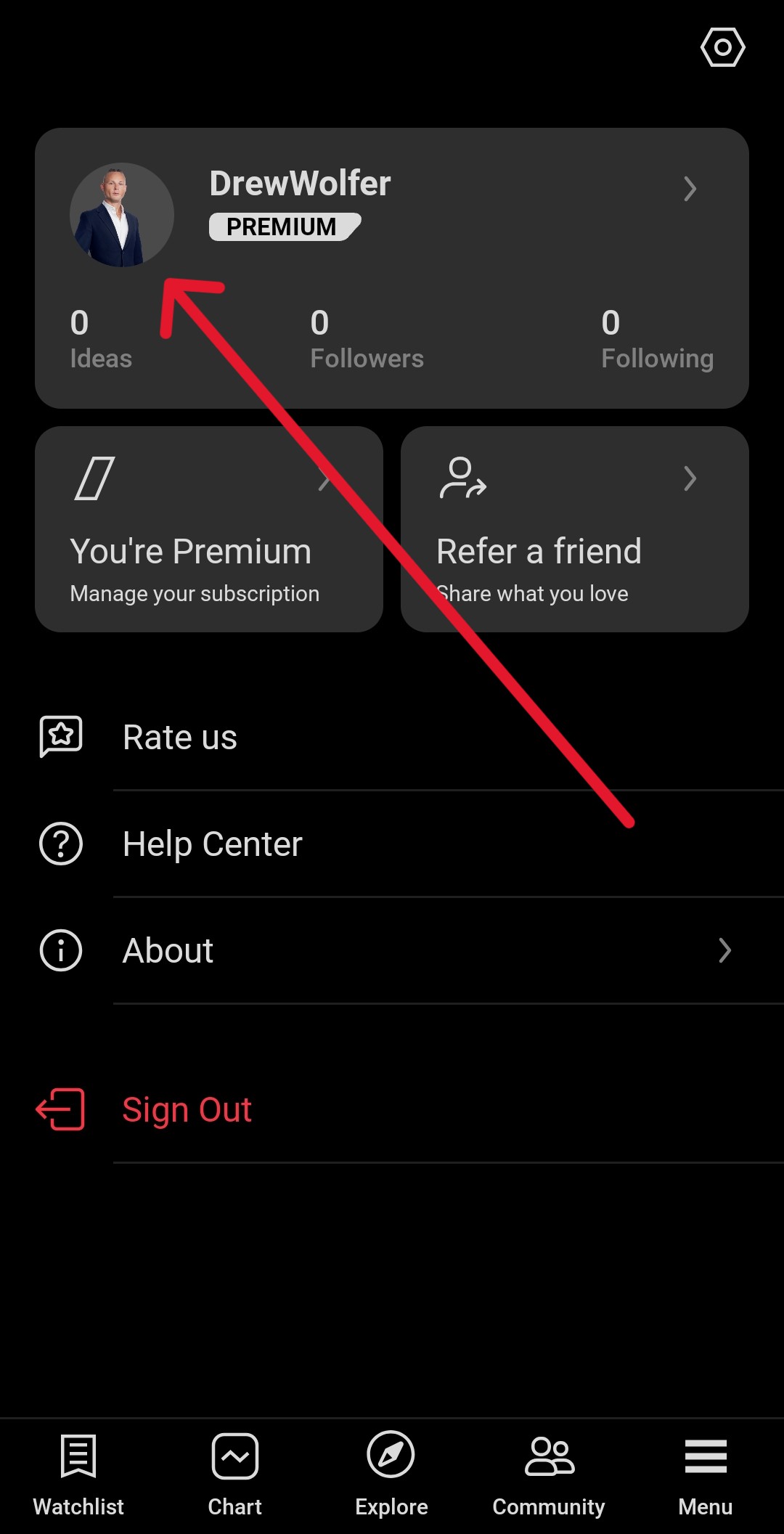
Click your profile avatar in the upper left hand corner, then click your “UserName”

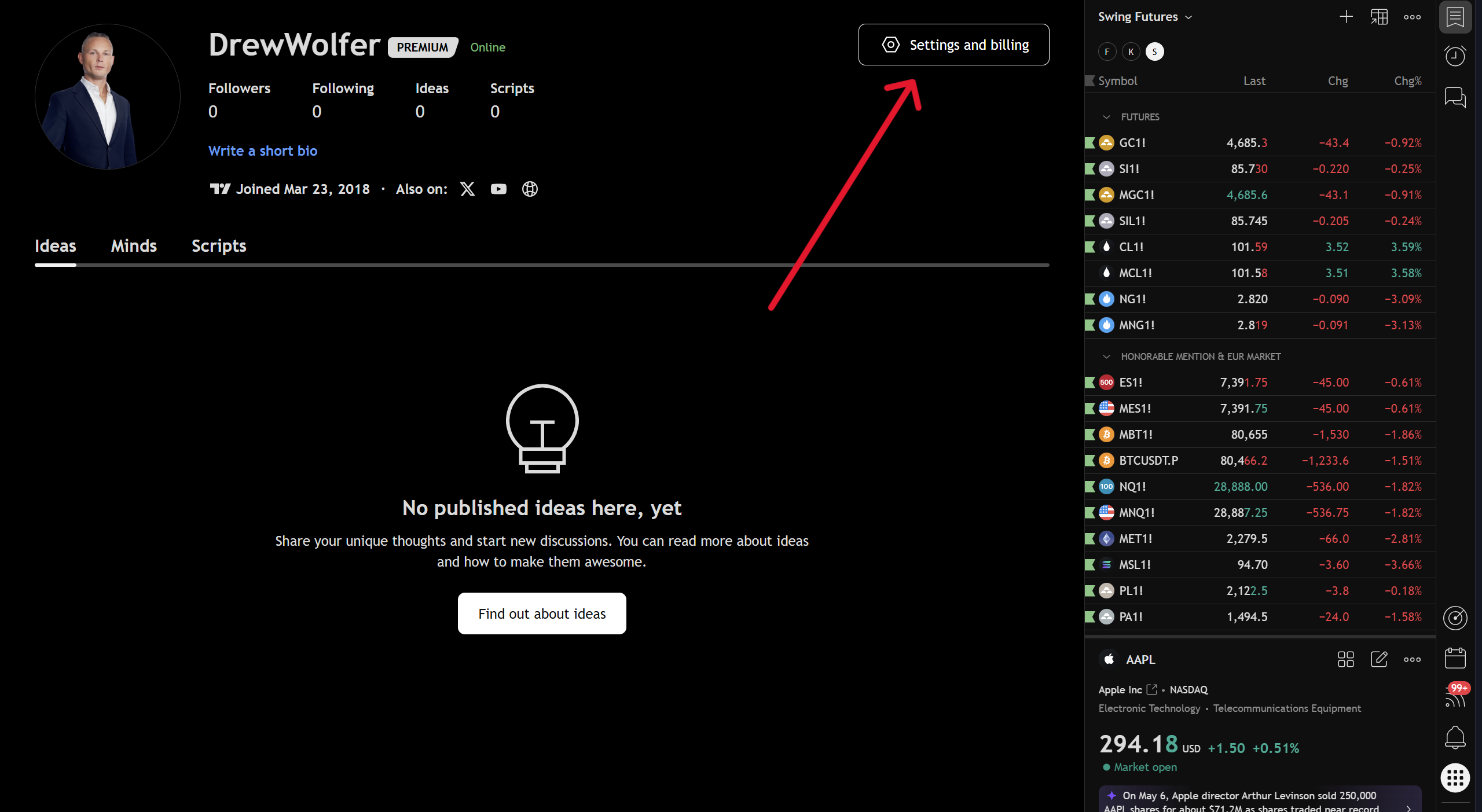
Click on the “Your Profile” or the “Settings & Billing” tab

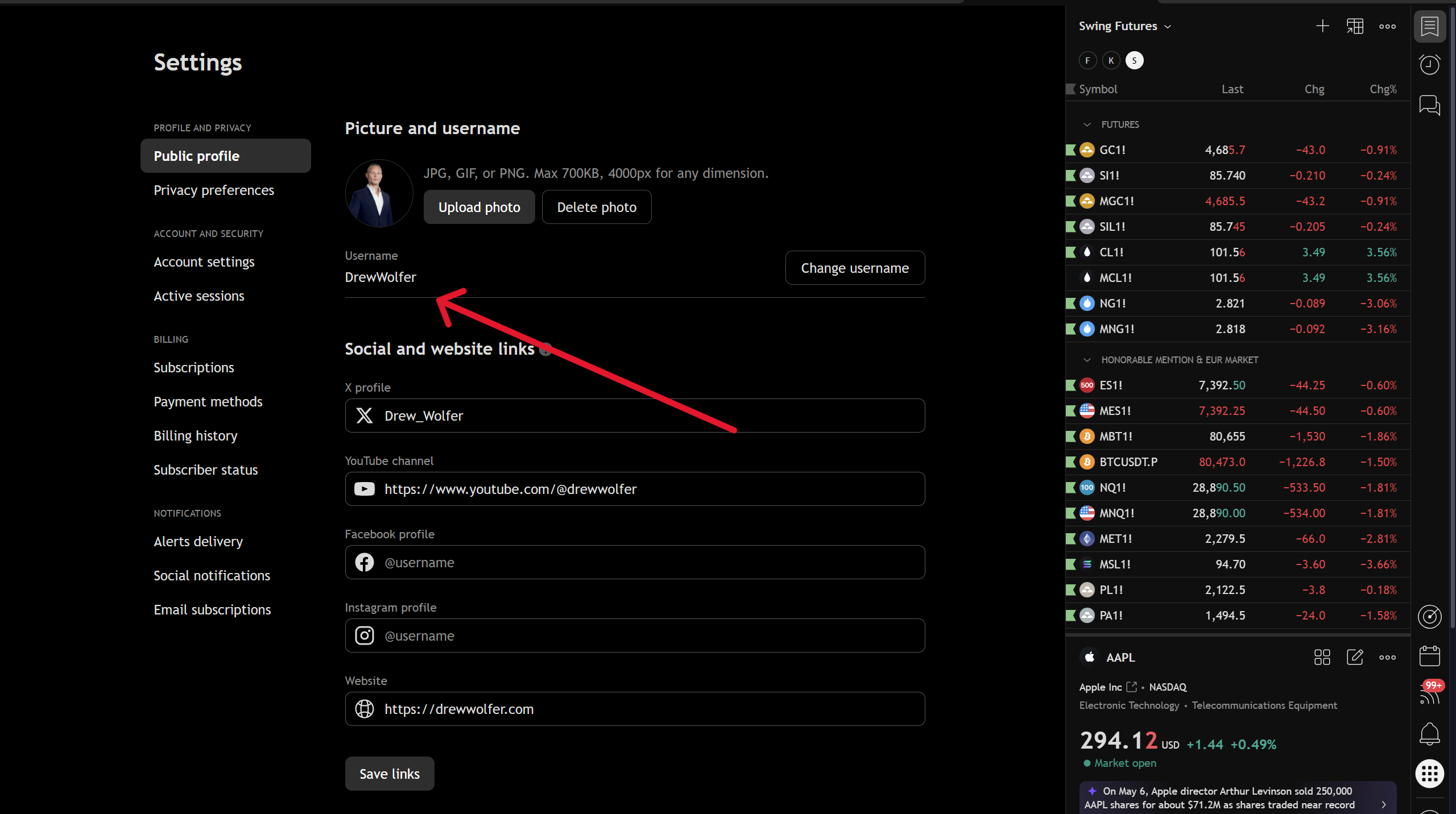
It starts with @ (for example: @YourUsername), or it will simply be displayed (case-sensitive) at the top of the screen after you click the “Settings & Billing” (Edit) Button in the upper right hand corner.

Copy the username (under the “Username” field) WITHOUT the @ symbol and paste it into your Alpha Intelligence account dashboard.

Troubleshooting

“I don’t see any indicators in my Invite-only section”

  • Double-check that your TradingView username is entered correctly in your Alpha Intelligence dashboard (case-sensitive, no @ symbol)
  • Allow up to 15 minutes after subscribing for access to be granted
  • Try refreshing your TradingView page (Ctrl+Shift+R or Cmd+Shift+R)
  • Make sure you are logged into the correct TradingView account
  • If the issue persists, contact us at info@getalphaindicators.com

TradingView Mobile App

⚠️ IMPORTANT: BEFORE YOU BEGIN

Make sure your TradingView username is entered correctly in your Alpha Intelligence Account Dashboard. If your username is not linked, you will not see the indicators in your Invite-only section. If you need help finding your TradingView username, check the tutorial at the bottom of this page.

Your TradingView username is required for us to grant you access to the Alpha Intelligence indicator suite. Here’s how to find it on mobile.

⚠️ Important:
Your username is NOT your display name. It is the text that starts with @ on your profile. Make sure you enter it exactly as shown (case-sensitive).

Open the TradingView app on your phone
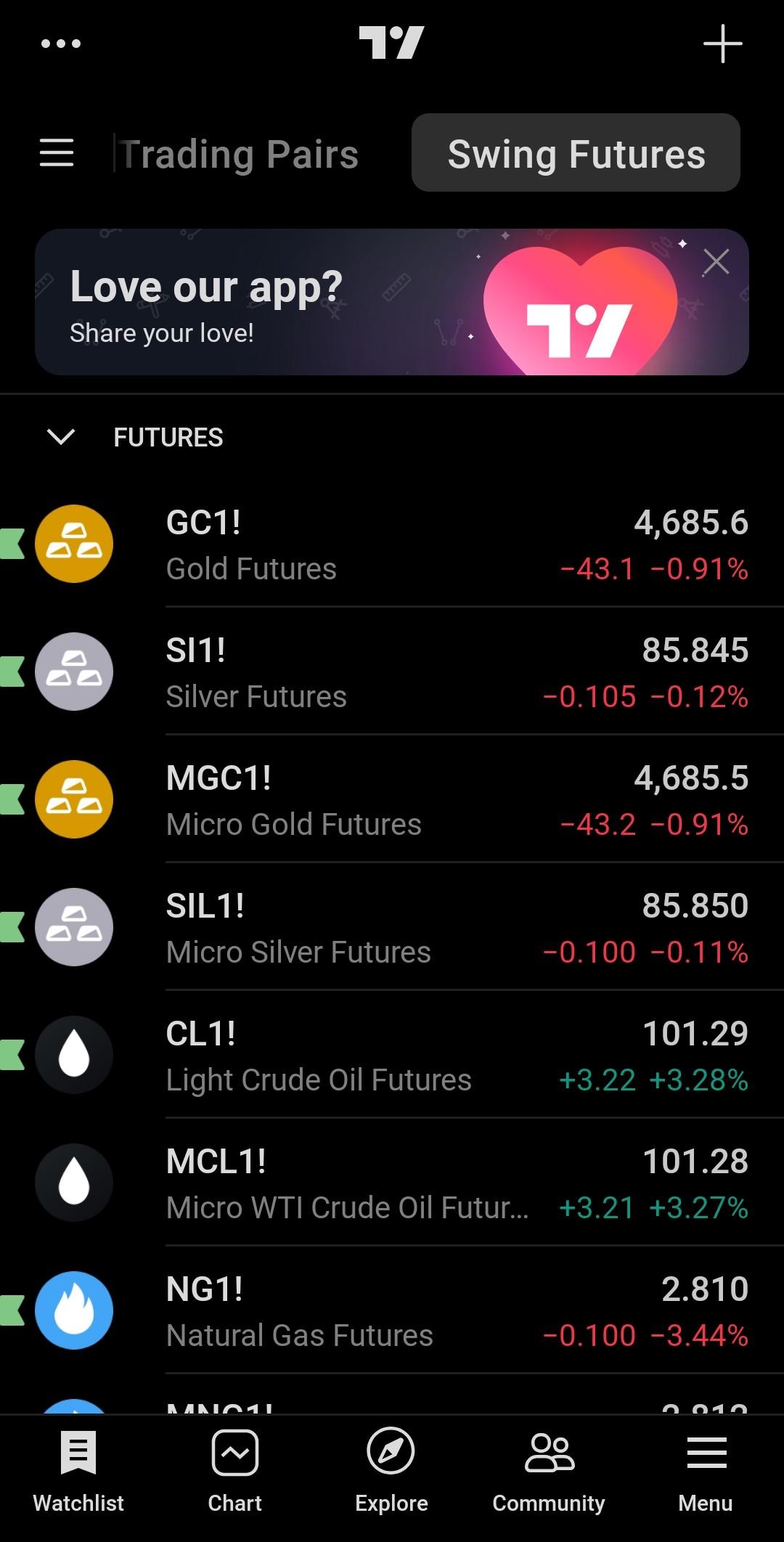
After subscribing to Alpha Intelligence, open the TradingView app on your mobile device (iPhone or Android).

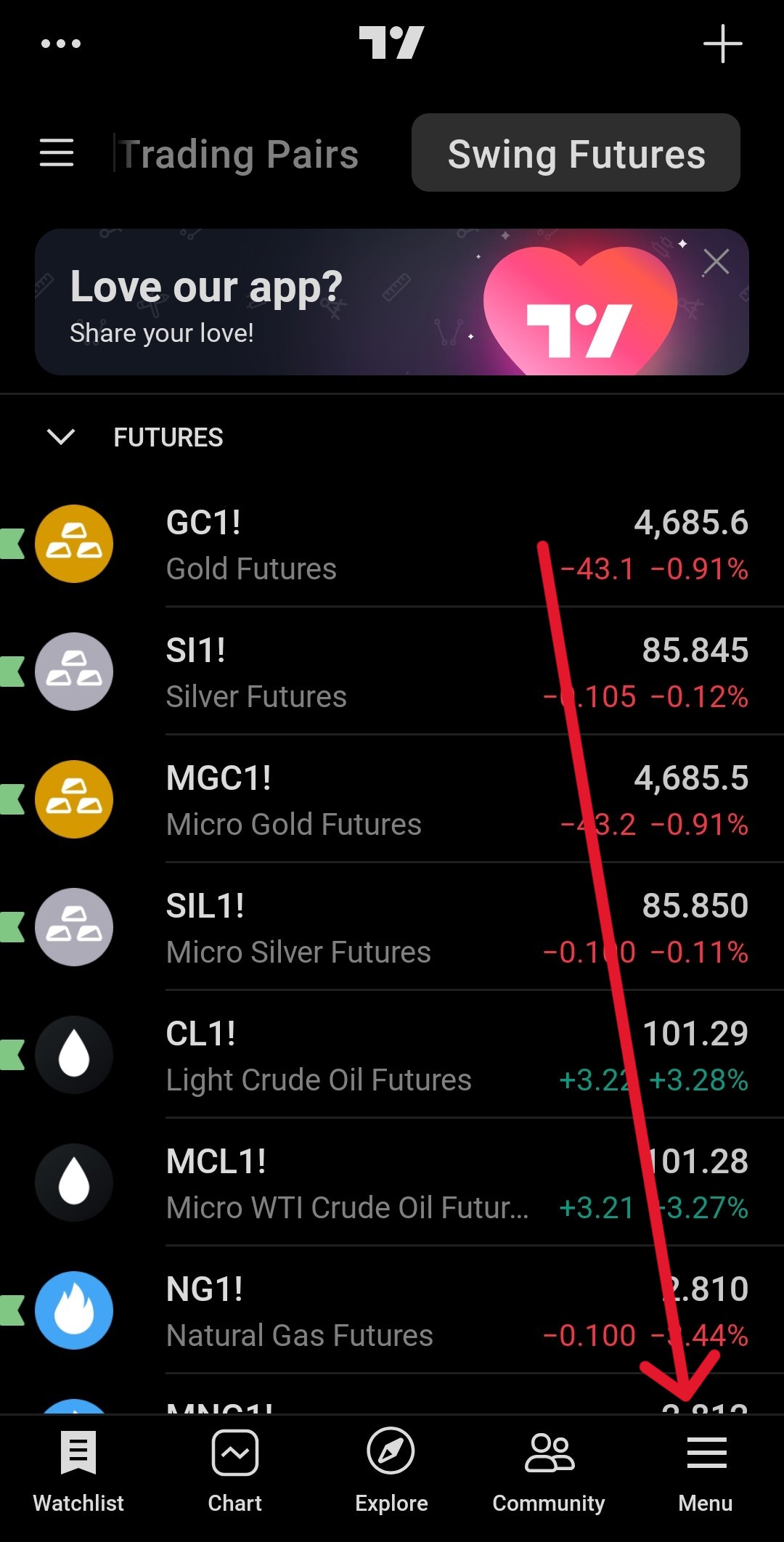
Tap the 3 stacked “-” button at the bottom right corner of your screen. This opens the settings menu.

Tap the “Indicators” button from the tools menu that appears. It has a small chart icon next to it.

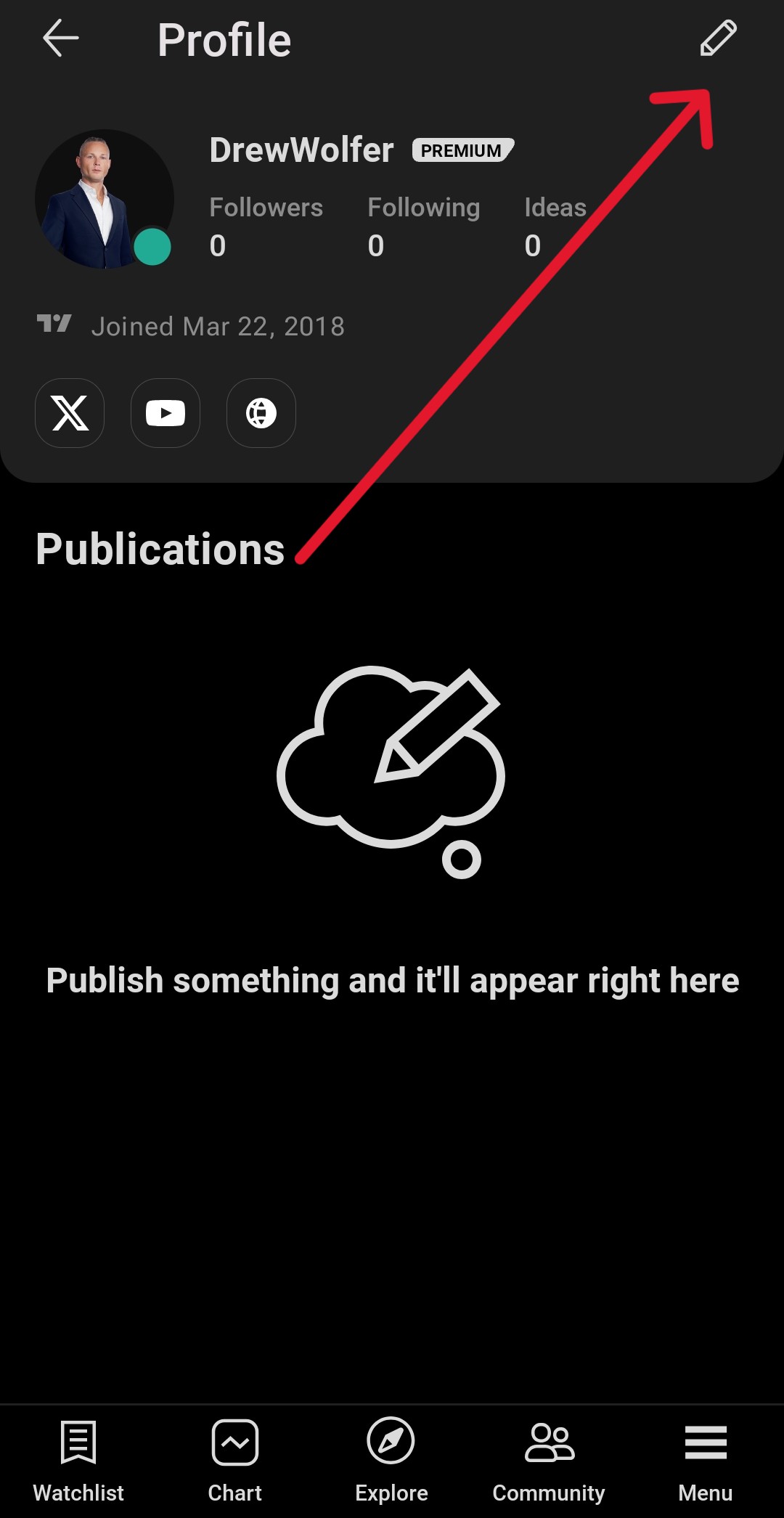
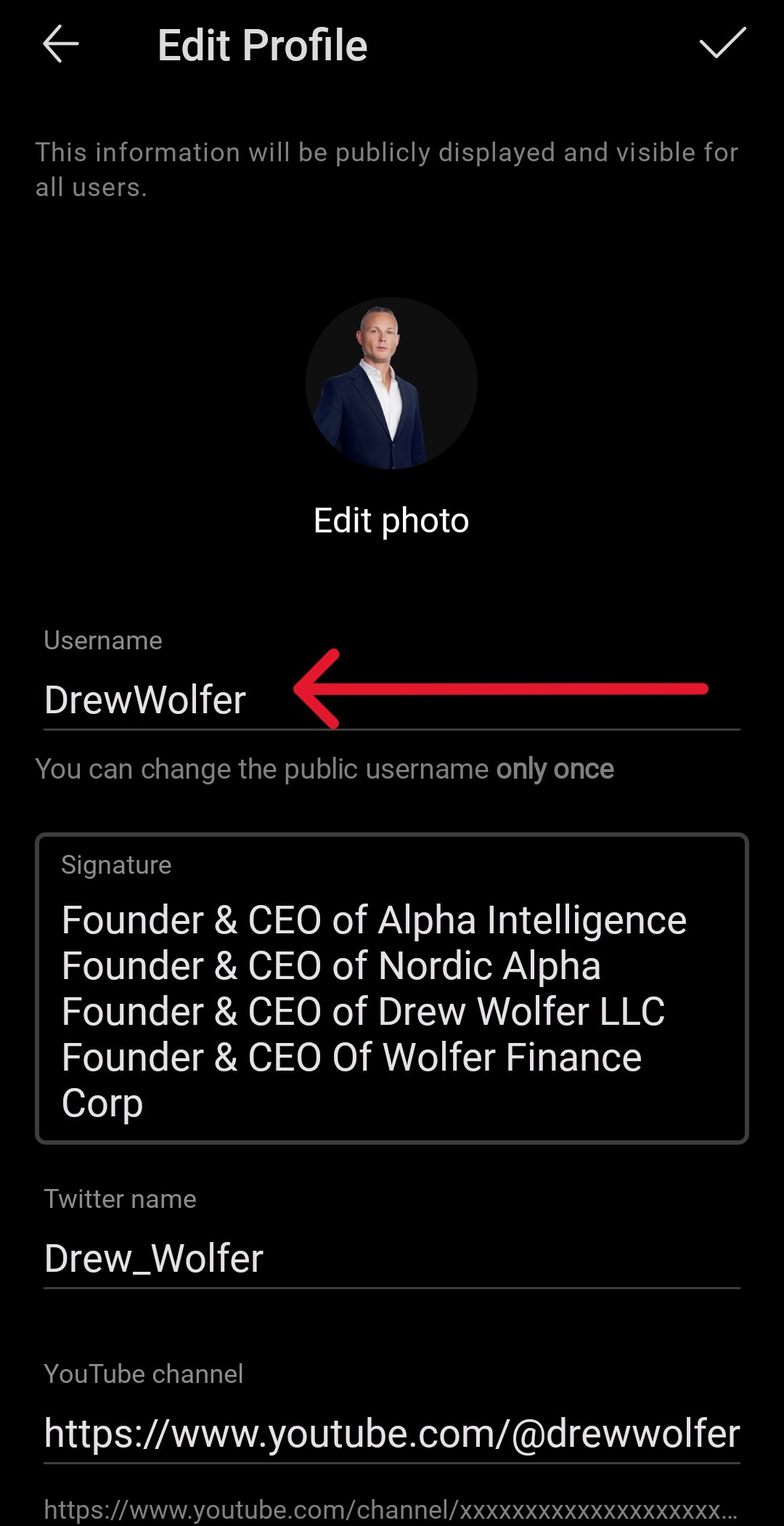
It starts with @ (for example: @YourUsername), or it will simply be displayed (case-sensitive) at the top of the screen after you click the “Pencil” (Edit) Button.

Copy the username WITHOUT the @ symbol and paste it into your Alpha Intelligence account dashboard.

Troubleshooting

“I don’t see any indicators in my Invite-only section”

  • Double-check that your TradingView username is entered correctly in your Alpha Intelligence dashboard (case-sensitive, no @ symbol)
  • Allow up to 15 minutes after subscribing for access to be granted
  • Close and reopen the TradingView app completely
  • Make sure you are logged into the correct TradingView account on your phone
  • If the issue persists, contact us at info@getalphaindicators.com
Scroll to Top